<a> : The Anchor element
The <a> HTML element (or anchor element), with
its href attribute, creates a hyperlink to web pages, files, email
addresses, locations in the same page, or anything else a URL can
address.
Attributes:
href - URL or link target (required for links)
target - Where to open the link (_blank, _self,
_parent, _top)
rel - Relationship between current page and linked
page (e.g., nofollow, noreferrer)
download - Suggests the browser download the linked
file
When to use it? Use when you want the user to
navigate to another page or section via a clickable link.
Example code snippet
<a href="https://example.com">Website</a>
<a href="mailto:m.bluth@example.com">Email</a>
<a href="tel:+123456789">Phone</a>
See rendered output
Website Email Phone
<abbr> : The Abbreviation element
The <abbr> tag represents an abbreviation or
acronym. It allows you to provide the full description of the
abbreviation using the title attribute. This improves
accessibility and provides semantic meaning to the content.
Attributes:
title - Full description of the abbreviation
When to use it? Use <abbr> when
you want to mark abbreviations, acronyms, or short forms, so that
users (and screen readers) can understand the full meaning.
Example code snippet
<p>
  You can use <abbr title="Cascading Style Sheets">CSS</abbr>
  to style <abbr title="HyperText Markup Language">HTML</abbr>.
</p>
See rendered output
You can use CSS to
style HTML .
<address> : The Contact Address element
The <address> HTML element indicates that the
enclosed HTML provides contact information for a person or people,
or for an organization.
Attributes:
When to use it? Only use this to represent the
contact information for its nearest article or body element ancestor
Example code snippet
<address>
  Written by <a href="mailto:webmaster@example.com">Jon Doe</a>.<br>
  Visit us at:<br>
  Example.com<br>
  123 Web Street, Internet City<br>
  Earth
</address>
See rendered output
Written by
Jon Doe .
<area> : The Image Map Area element
The <area> HTML element defines a clickable area
within an image map. An image map allows specific geometric areas on
an image (rectangles, circles, polygons) to be associated with
links.
<area> element is always nested inside a
<map> element, and the image must reference that
map using the usemap attribute.
Attributes:
alt - Alternative text for the clickable area
coords - Coordinates that define the shape of the
area
shape - Shape of the area (rect, circle, poly,
default)
href - The link target when area is clicked
target - Where to open the linked document (_self,
_blank, etc.)
download - Suggests that the linked resource should
be downloaded
rel - Relationship of the target object to the
current document
When to use it? Use when you want to define
clickable regions inside an image, instead of overlaying multiple
separate images or links.
Example code snippet
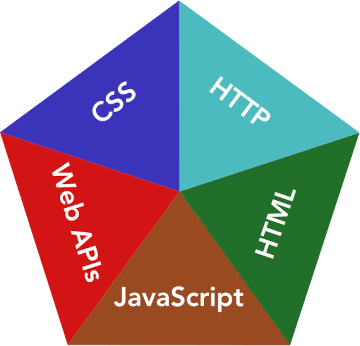
<map name="infographic">
  <area shape="poly" coords="129,0,260,95,129,138"
        href="https://developer.mozilla.org/docs/Web/HTTP"
        alt="HTTP" />
  <area shape="poly" coords="260,96,209,249,130,138"
        href="https://developer.mozilla.org/docs/Web/HTML"
        alt="HTML" />
  <area shape="poly" coords="209,249,49,249,130,139"
        href="https://developer.mozilla.org/docs/Web/JavaScript"
        alt="JavaScript" />
  <area shape="poly" coords="48,249,0,96,129,138"
        href="https://developer.mozilla.org/docs/Web/API"
        alt="Web APIs" />
  <area shape="poly" coords="0,95,128,0,128,137"
        href="https://developer.mozilla.org/docs/Web/CSS"
        alt="CSS" />
</map>

<img usemap="#infographic"
     src="mdn-info.png"
     alt="MDN infographic" />
See rendered output
<article> : The Article Contents element
The <article> HTML element represents a
self-contained composition in a document, page, application, or
site, which is intended to be independently distributable or
reusable (e.g., in syndication). Examples include: a forum post, a
magazine or newspaper article, or a blog entry, a product card, a
user-submitted comment, an interactive widget or gadget, or any
other independent item of content.
Attributes:
When to use it? when you have a self-contained
piece of content that could stand on its own or be syndicated, such
as:
Example code snippet
<article>
  <h3>Movie Review</h3>
  <p>Jurassic Park was awesome!</p>

  <article>
    <h4>User Comment</h4>
    <p>Too scary for me!</p>
  </article>
</article>
See rendered output
Movie Review
Jurassic Park was awesome!
User Comment
Too scary for me!
<aside> : The Aside element
The <aside> HTML element represents a portion of
a document whose content is only indirectly related to the
document's main content. Asides are frequently presented as sidebars
or call-out boxes.
Do not use the <aside> element to tag
parenthesized text, as this kind of text is considered part of the
main flow.
Attributes:
attribute - This element only includes the global
attributes.
When to use it? Use <aside> for
content that is related but not central to the main content.
Typically, sidebars, pull quotes, callout boxes, or related links
fit here. It's like a “tangent” that supports the main article.
Example code snippet
<aside>
  <h4>Related Articles</h4>
  <ul>
    <li><a href="#">10 Tips for Better Sleep</a></li>
    <li><a href="#">How to Stay Productive</a></li>
    <li><a href="#">Healthy Snack Ideas</a></li>
  </ul>
</aside>
See rendered output
<audio> : The Audio element
The <audio> HTML element is used to embed sound
content in documents, such as music or other audio streams.
Attributes:
src - The path to the audio file
controls - Adds audio controls (play, pause, volume)
autoplay - Audio starts playing automaticallyloop - Audio will loop indefinitelymuted - Audio starts muted
When to use it? Use
<audio> whenever you want to play audio files
directly on your webpage.
Example code snippet
<audio controls>
  <source src="song.mp3" type="audio/mpeg">
  Your browser does not support the audio element.
</audio>
See rendered output
<b> : The Bold Text element
The <b> element is used to draw attention to text
without implying extra importance or emphasis.
Attributes:
When to use it? Use <b> for
keywords or text that needs visual importance but not semantic
emphasis.
Example code snippet
<p>This is <b>important</b> text.</p>
See rendered output
This is important text.
<base> : The Base URL element
The <base> element specifies the base URL to use
for all relative URLs in a document.
Attributes:
href - The base URL for relative links
target - Default target for hyperlinks (_blank,
_self, etc.)
When to use it? Use <base> when
you want all relative links and resources to reference a specific
URL base.
Example code snippet
<head>
  <base href="https://example.com/" target="_blank">
</head>
<a href="page.html">Go to page</a>
See rendered output
Go to page
<bdi> : The Bi-Directional Isolation element
The <bdi> element tells the browser to isolate a
span of text that might have a different text direction than its
surroundings.
Attributes:
When to use it? Use <bdi> when
displaying text from user input or external sources with unknown
text direction.
Example code snippet
<p>Username: <bdi>محمد</bdi></p>
See rendered output
Username: محمد
<bdo> : The Bi-Directional Override element
The <bdo> element overrides the current text
direction.
Attributes:
dir - Text direction (ltr, rtl)
When to use it? Use <bdo> when
you need to force text to display in a specific direction.
Example code snippet
<p>Normal: Hello</p>
<p>Overridden: <bdo dir="rtl">Hello</bdo></p>
See rendered output
Normal: Hello
Overridden: Hello
<blockquote> : The Block Quotation element
The <blockquote> element represents a section
that is quoted from another source, typically displayed as an
indented block.
Attributes:
cite - The URL of the source of the quotationGlobal attributes only
When to use it? Use
<blockquote> to mark long quotations from other
sources.
Example code snippet
<blockquote cite="https://example.com/article">
  This is a famous quote from an article.
</blockquote>
See rendered output
This is a famous quote from an article.
<body> : The Body element
The <body> element contains all the contents of
an HTML document, such as text, images, links, forms, and other
media.
Attributes:
When to use it? Every HTML page must have a
<body> element.
Example code snippet
<body>
  <h1>Welcome</h1>
  <p>This is the main content of the page.</p>
</body>
See rendered output
Welcome
This is the main content of the page.
<br> : The Line Break element
The <br> element inserts a line break in text. It
is an empty element (no closing tag needed).
Attributes:
When to use it? Use <br> to
separate lines within a paragraph.
Example code snippet
<p>Line 1<br>Line 2</p>
See rendered output
Line 1
<button> : The Button element
The <button> element represents a clickable
button, which can submit forms, trigger scripts, or perform actions.
Attributes:
type - The type of button (button, submit, reset)
disabled - Makes the button unclickableGlobal attributes only
When to use it? Use <button> to
add interactive buttons.
Example code snippet
<button type="button">Click Me</button>
See rendered output
Click Me
<canvas> : The Canvas element
The <canvas> element is used to draw graphics on
the fly via JavaScript.
Attributes:
width - Width of the canvas (default 300)height - Height of the canvas (default 150)Global attributes only
When to use it? Use <canvas> to
draw shapes, charts, games, or other graphics dynamically.
Example code snippet
<canvas id="myCanvas" width="200" height="100" style="border:1px solid #000000;">
  Your browser does not support the canvas element.
</canvas>
See rendered output
Your browser does not support the canvas element.
<caption> : The Table Caption element
The <caption> element specifies a caption (title)
for a table.
Attributes:
When to use it? Use <caption> to
describe a table's purpose.
Example code snippet
<table border="1">
  <caption>Monthly Sales</caption>
  <tr><th>Item</th><th>Sales</th></tr>
  <tr><td>Apples</td><td>50</td></tr>
</table>
See rendered output
Monthly Sales
Item
Sales
Apples
50
<cite> : The Citation element
The <cite> element represents the title of a work
or a reference to a source.
Attributes:
When to use it? Use <cite> to
reference books, articles, or creative works.
Example code snippet
<p>I recently read <cite>Harry Potter</cite>.</p>
See rendered output
I recently read Harry Potter .
<code> : The Code element
The <code> element represents a fragment of
computer code.
Attributes:
When to use it? Use <code> to
mark inline code snippets in text.
Example code snippet
<p>Use the <code>console.log()</code> function to print messages.</p>
See rendered output
Use the console.log() function to print messages.
<col> : The Column element
The <col> element defines column properties for
an HTML table.
Attributes:
span - Number of columns the element applies to
Global attributes only
When to use it? Use <col> to
style table columns.
Example code snippet
<table border="1">
  <col span="2" style="background-color:yellow">
  <tr><td>1</td><td>2</td></tr>
  <tr><td>3</td><td>4</td></tr>
</table>
See rendered output
<colgroup> : The Column Group element
The <colgroup> element groups table columns to
apply styles collectively.
Attributes:
span - Number of columns in the groupGlobal attributes only
When to use it? Use
<colgroup> to style multiple columns at once.
Example code snippet
<table border="1">
  <colgroup span="2" style="background-color:lightblue"></colgroup>
  <tr><td>1</td><td>2</td></tr>
  <tr><td>3</td><td>4</td></tr>
</table>
See rendered output
<data> : The Data element
The <data> element links a piece of content with
a machine-readable value.
Attributes:
value - The machine-readable valueGlobal attributes only
When to use it? Use <data> to
store extra numeric or semantic info.
Example code snippet
<p>The population of the city is <data value="500000">500 thousand</data>.</p>
See rendered output
The population of the city is
500 thousand .
<datalist> : The Data List element
The <datalist> element contains a list of
predefined options for an <input> element.
Attributes:
Example code snippet
<input list="browsers">
<datalist id="browsers">
  <option value="Chrome">
  <option value="Firefox">
  <option value="Edge">
</datalist>
See rendered output
<dd> : Definition Description
The <dd> element provides the description or
value in a definition list (<dl>).
Attributes:
Example code snippet
<dl>
  <dt>HTML</dt>
  <dd>HyperText Markup Language</dd>
</dl>
See rendered output
HTML
HyperText Markup Language
<del> : Deleted Text
The <del> element represents text that has been
removed from a document.
Attributes:
cite - URL explaining the changedatetime - When the text was deleted
Example code snippet
<p>This text is <del datetime="2025-01-01">old</del>.</p>
See rendered output
This text is old.
<details> : Details Disclosure
The <details> element creates a disclosure
widget, which users can open or close.
Attributes:
open - Boolean indicating if the details are visible
Global attributes only
Example code snippet
<details>
  <summary>Click to see more</summary>
  <p>Extra information here.</p>
</details>
See rendered output
Click to see more
Extra information here.
<dfn> : Definition element
The <dfn> element represents the defining
instance of a term.
Attributes:
Example code snippet
<p><dfn>HTML</dfn> stands for HyperText Markup Language.</p>
See rendered output
HTML stands for HyperText Markup Language.
<dialog> : Dialog box
The <dialog> element represents a dialog box or
window.
Attributes:
open - Boolean indicating if the dialog is shown
Global attributes only
Example code snippet
<dialog open>
  <p>This is a dialog.</p>
</dialog>
See rendered output
This is a dialog.
<div> : Generic container
The <div> element is a generic container for
grouping content.
Attributes:
Example code snippet
<div class="container">
  <p>Some content here.</p>
</div>
See rendered output
<dl> : Definition List
The <dl> element contains definition terms
(<dt>) and descriptions
(<dd>).
Attributes:
Example code snippet
<dl>
  <dt>HTML</dt>
  <dd>HyperText Markup Language</dd>
</dl>
See rendered output
HTML
HyperText Markup Language
<dt> : Definition Term
The <dt> element defines a term in a definition
list (<dl>).
Attributes:
Example code snippet
<dl>
  <dt>CSS</dt>
  <dd>Cascading Style Sheets</dd>
</dl>
See rendered output
CSS
Cascading Style Sheets
<em> : Emphasized text
The <em> element emphasizes text, usually
rendered in italics.
Attributes:
Example code snippet
<p>This is <em>important</em> text.</p>
See rendered output
This is important text.
<embed> : Embedded content
The <embed> element embeds external content like
multimedia.
Attributes:
src - URL of the resourcetype - MIME typewidth / heightGlobal attributes only
Example code snippet
<embed src="example.pdf" type="application/pdf" width="500" height="375">
See rendered output
<fieldset> : Group form elements
The <fieldset> element groups related elements in
a form.
Attributes:
Global attributes only
disabled - Disables the group
Example code snippet
<fieldset>
  <legend>Personal Info</legend>
  <label>Name: </label><input type="text">
</fieldset>
See rendered output
Personal Info
Name:
<figcaption> : Figure caption
The <figcaption> element provides a caption for a
<figure>.
Attributes:
Example code snippet
<figure>
  <img src="image.jpg" alt="Sample Image">
  <figcaption>This is a caption.</figcaption>
</figure>
See rendered output
This is a caption.
<figure> : Self-contained content
The <figure> element represents self-contained
content, like images or diagrams, with optional captions.
Attributes:
Example code snippet
<figure>
  <img src="anime.png" alt="AOT anime">
  <figcaption>Attack on titan.</figcaption>
</figure>
See rendered output
Attack on titan.
<form> : Form elementThe <form> element collects user input.
Attributes:
action - URL to submit datamethod - HTTP method (GET, POST)enctype - Data encoding typetarget - Where to display responseGlobal attributes only
Example code snippet
<form action="/submit" method="post">
  <label>Name: </label><input type="text" name="name">
  <button type="submit">Send</button>
</form>
See rendered output
<h1> : Main heading
The <h1> element represents the most important
heading in a document.
Attributes:
Example code snippet
<h1>Welcome to My Website</h1>
See rendered output
Welcome to My Website
<h2> : Second-level heading
The <h2> element represents a subheading under
<h1>.
Attributes:
Example code snippet
<h2>Section Title</h2>
See rendered output
Section Title
<h3> : Third-level heading
The <h3> element represents a subheading under
<h2>.
Attributes:
Example code snippet
<h3>Subsection</h3>
See rendered output
Subsection
<h4> : Fourth-level heading
The <h4> element represents a subheading under
<h3>.
Attributes:
Example code snippet
<h4>Sub-subsection</h4>
See rendered output
Sub-subsection
<h5> : Fifth-level heading
The <h5> element represents a subheading under
<h4>.
Attributes:
Example code snippet
<h5>Minor heading</h5>
See rendered output
Minor heading
<h6> : Sixth-level heading
The <h6> element represents the least important
heading.
Attributes:
Example code snippet
<h6>Tiny heading</h6>
See rendered output
Tiny heading
<head> : Document head
The <head> element contains metadata, title, and
links to scripts or stylesheets.
Attributes:
Example code snippet
<head>
  <title>My Page</title>
  <meta charset="UTF-8">
</head>
See rendered output
My Page
<hr> : Horizontal rule
The <hr> element represents a thematic break
between sections.
Attributes:
Example code snippet
<p>Paragraph above</p>
<hr>
<p>Paragraph below</p>
See rendered output
Paragraph above
Paragraph below
<html> : Root element
The <html> element is the root of an HTML
document.
Attributes:
lang - Language of the documentGlobal attributes only
Example code snippet
<!DOCTYPE html>
<html lang="en">
<head></head>
<body></body>
</html>
See rendered output
<i> : Italic text
The <i> element represents text in an alternate
voice or mood, typically rendered in italics.
Attributes:
Example code snippet
<p>This is <i>italic</i> text.</p>
See rendered output
This is italic text.
<iframe> : Inline frame
The <iframe> element embeds another HTML page
within the current page.
Attributes:
src - URL of the pagewidth, height
name, allowfullscreen,
loading
Global attributes only
Example code snippet
<iframe src="https://example.com" width="600" height="400"></iframe>
See rendered output
<img> : Image
The <img> element embeds an image into the
document.
Attributes:
src - Image URLalt - Alternative textwidth / heightGlobal attributes only
Example code snippet
<img src="logo.png" alt="Logo" width="100">
See rendered output
<input> : Input field
The <input> element represents a form control for
user input.
Attributes:
type - Text, password, checkbox, etc.
name, value, placeholder
required, disabledGlobal attributes only
Example code snippet
<input type="text" name="username" placeholder="Enter name">
See rendered output
<ins> : Inserted text
The <ins> element represents text inserted into a
document, usually rendered underlined.
Attributes:
cite - URL of sourcedatetime - Timestamp of insertionGlobal attributes only
Example code snippet
<p>This text was <ins>added</ins> recently.</p>
See rendered output
This text was added recently.
<kbd> : Keyboard input
The <kbd> element represents user input from a
keyboard.
Attributes:
Example code snippet
<p>Press <kbd>Ctrl+C</kbd> to copy.</p>
See rendered output
Press Ctrl+C to copy.
<label> : Form label
The <label> element defines a label for a form
control.
Attributes:
for - ID of associated inputGlobal attributes only
Example code snippet
<label for="username">Username:</label>
<input id="username" type="text">
See rendered output
Username:
<legend> : Fieldset caption
The <legend> element provides a caption for a
<fieldset>.
Attributes:
Example code snippet
<fieldset>
  <legend>Personal Info</legend>
  <input type="text" name="name">
</fieldset>
See rendered output
Personal Info
Name:
<li> : List item
The <li> element represents an item in a list.
Attributes:
Global attributes only
Value attribute for ordered lists
Example code snippet
<ul>
  <li>Item 1</li>
  <li>Item 2</li>
</ul>
See rendered output
<link> : External resource
The <link> element defines a relationship between
the document and an external resource (like CSS).
Attributes:
rel - Relationship typehref - URL
type, media, crossorigin
Global attributes only
Example code snippet
<link rel="stylesheet" href="styles.css">
See rendered output
<main> : Main content
The <main> element represents the dominant
content of the document.
Attributes:
Example code snippet
<main>
  <article>...</article>
</main>
See rendered output
...
<map> : Image map
The <map> element defines an image map with
clickable areas.
Attributes:
name - Name of the mapGlobal attributes only
Example code snippet
<img src="https://25b12bd9-486c-4bb0-bbd2-8c9f0ff032d5.mdnplay.dev/shared-assets/images/examples/mdn-info2.png" usemap="#office" alt="Dummy plan" width="260" height="232">
<map name="office">
  <area shape="poly" coords="130,147,200,107,254,219,130,228" href="room1.html" alt="Room 1">
</map>
See rendered output
<mark> : Highlighted text
The <mark> element represents highlighted or
marked text.
Attributes:
Example code snippet
<p>This is <mark>important</mark> text.</p>
See rendered output
This is important text.
<meta> : Metadata
The <meta> element provides metadata like
charset, description, or viewport.
Attributes:
name, contentcharsethttp-equivGlobal attributes only
Example code snippet
<meta charset="UTF-8">
<meta name="description" content="Example page">
See rendered output
<meter> : Measurement gauge
The <meter> element represents a scalar
measurement within a known range.
Attributes:
value, min, maxlow, high, optimumGlobal attributes only
Example code snippet
<meter value="0.6" min="0" max="1">60%</meter>
See rendered output
60%
<nav> : Navigation sectionThe <nav> element defines navigation links.
Attributes:
Example code snippet
<nav>
  <a href="home.html">Home</a>
  <a href="about.html">About</a>
</nav>
See rendered output
Home
About
<noscript> : Fallback content
The <noscript> element provides content if
scripts are disabled.
Attributes:
Example code snippet
<noscript>Please enable JavaScript to view this site.</noscript>
See rendered output
Please enable JavaScript to view this site.
<object> : Embedded object
The <object> element embeds multimedia, PDFs, or
other resources.
Attributes:
data - URL of the resourcetype, width, heightGlobal attributes only
Example code snippet
<object data="file.pdf" type="application/pdf" width="600" height="400"></object>
See rendered output
<ol> : Ordered listThe <ol> element represents a numbered list.
Attributes:
Global attributes only
type, start, reversed
Example code snippet
<ol>
  <li>First</li>
  <li>Second</li>
</ol>
See rendered output
First
Second
<optgroup> : Option group
The <optgroup> element groups options in a
dropdown.
Attributes:
label - Group labelGlobal attributes only
Example code snippet
<select>
  <optgroup label="Fruits">
    <option>Apple</option>
    <option>Banana</option>
  </optgroup>
</select>
See rendered output
Apple
Banana
<option> : Dropdown option
The <option> element represents a choice in a
dropdown.
Attributes:
value, selected, disabled
Global attributes only
Example code snippet
<select>
  <option value="1">One</option>
  <option value="2">Two</option>
</select>
See rendered output
One
Two
<output> : Calculation result
The <output> element represents the result of a
calculation or user action.
Attributes:
for - Related input IDsnameGlobal attributes only
Example code snippet
<output name="result" for="a b">0</output>
See rendered output
0
<p> : Paragraph
The <p> element represents a paragraph of text.
Attributes:
Example code snippet
<p>This is a paragraph.</p>
See rendered output
This is a paragraph.
<param> : Parameter for object (Deprecated - No
longer works)
The <param> element defines parameters for
<object>.
Attributes:
name, valueGlobal attributes only
Example code snippet
<object data="movie.swf">
  <param name="autoplay" value="true">
</object>
See rendered output
<picture> : Responsive images
The <picture> element allows multiple sources for
responsive images.
Attributes:
Example code snippet
<picture>
  <source srcset="small.jpg" media="(max-width: 600px)">
  <img src="large.jpg" alt="Example">
</picture>
See rendered output
<pre> : Preformatted text
The <pre> element displays preformatted text
preserving whitespace and line breaks.
Attributes:
Example code snippet
<pre>
  Line 1
  Line 2
</pre>
See rendered output
  Line 1
  Line 2
<progress> : Progress bar
The <progress> element represents task progress.
Attributes:
value, maxGlobal attributes only
Example code snippet
<progress value="70" max="100">70%</progress>
See rendered output
70%
 />
/>